

Play wirelessly with Bluetooth
Switch your Stadia Controller to Bluetooth mode to keep gaming wirelessly on your favorite devices and services after Stadia shuts down
Switching to Bluetooth mode downloads a software
update
System requirements: Chrome 108 or newer
System requirements: Chrome 108 or newer
Important things to know
Switching is permanent
Once you switch your controller to Bluetooth mode, you
can’t change it back to use Wi-Fi on Stadia. You can still play wired with
USB in Bluetooth mode.
Available until December 31, 2023
You can switch to Bluetooth mode, check the controller
mode, and check for Bluetooth updates until Dec 31, 2023.
Find the answers you need
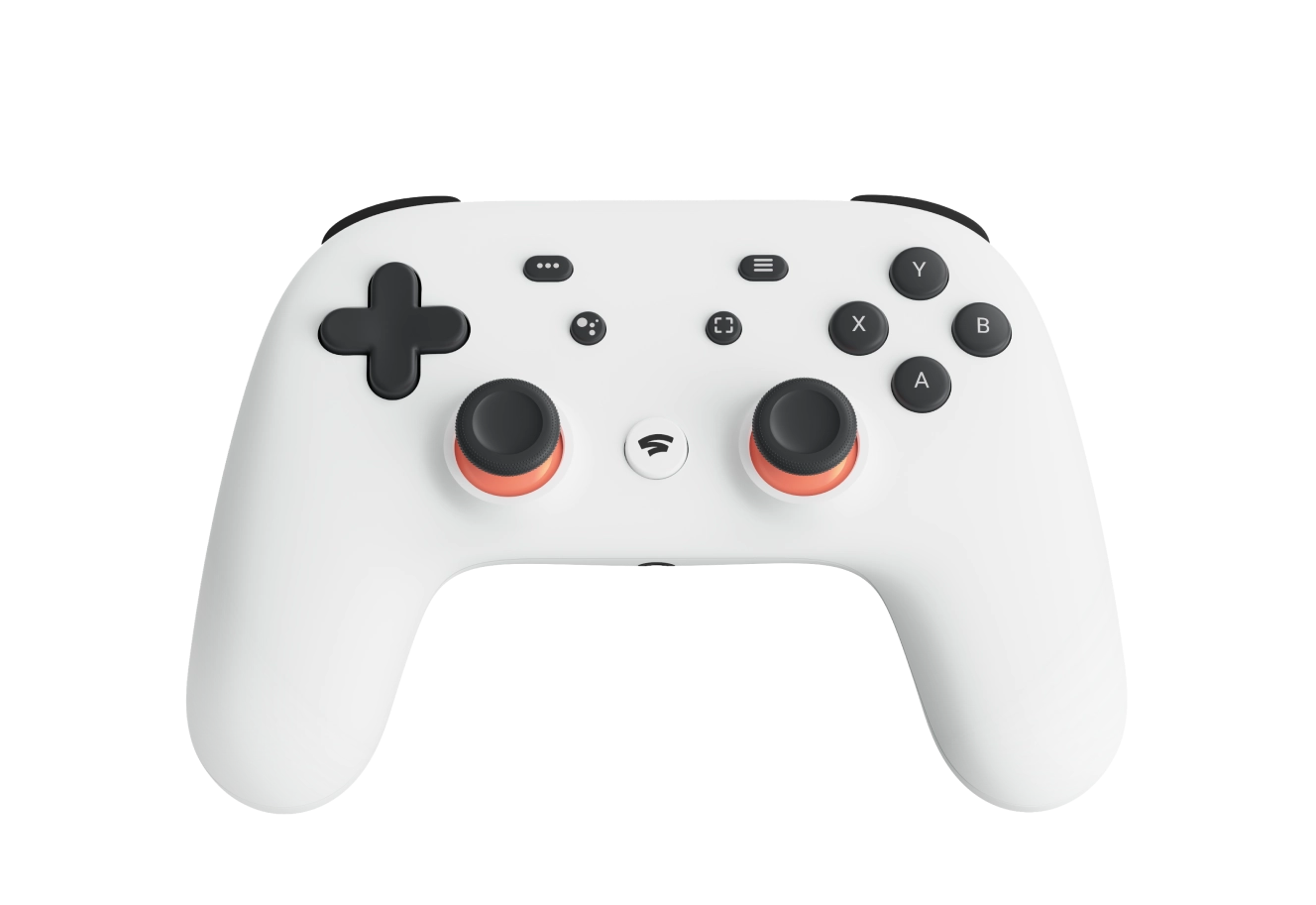
After switching your controller into Bluetooth mode, press and
hold the “Y + Stadia” buttons for 2 seconds to enter pairing mode. The status light
will flash orange.
Then, go to the device you want to play on and pair your controller in the settings.
Once paired and connected, the status light on the controller will turn solid white.
Congrats! You’re ready to start playing. The next time you turn on the controller,
it should automatically connect to the last paired device.
Not all Bluetooth devices are the same, so compatibility will
vary. The Stadia Controller uses Bluetooth Low Energy connections, so some features,
such as pass-through audio, aren’t possible wirelessly.
We’ve verified that the Stadia Controller works for gameplay with the list of
supported devices. It hasn’t been tested with all Bluetooth device types, so it
might not work with others.
When using the controller wirelessly in Bluetooth mode, the 3.5mm
port and USB port won’t be able to be used for headphones.
When using the controller wired with USB, you’ll be able to plug headphones into the
controller’s 3.5mm port.
Yes. By default, the Google Assistant and Capture buttons won’t
do anything in Bluetooth mode until remapped. You can remap the buttons using button
mapping services.
You can verify whether your controller is in Bluetooth mode by
checking the controller mode. Doing this also checks for any updates to Bluetooth
mode.
Make sure your controller is charged for at least 30 minutes, and
that you’re using a USB data cable that can transfer data. The cable that came with
your controller will work.
Make sure your controller is charged for at least 30 minutes.
Unplug your controller and hold the Stadia button for 10 seconds — this should reset
the device to be playable again.
If this still doesn’t work, factory reset the controller by holding the Google
Assistant and Capture buttons for 6 seconds — the controller should vibrate and the
status light should flash.
Unfortunately, customer support is not available for Bluetooth
mode. If you have any questions, please go to the help center article.
The Bluetooth® word mark and
logos are registered trademarks owned by Bluetooth SIG, Inc. and any use of such marks by Google
is under license. Other trademarks and trade names are those of their respective owners.